# Connecting Snapchat Ads data using Dokin

Dokin is a spreadsheet-integrated data platform that allows you to connect various data sources and integrate them seamlessly into your spreadsheets, documents or presentation. With Dokin, you can **sync Snapchat Ads data** to:

* Manage and analyze your search performance data in a Google Sheets spreadsheet,
* Create dynamic dashboards and visualize real-time data
* Automate reporting

<details>

<summary>Preliminary : how to install and open Dokin add-on ?</summary>

***Install Dokin add-on***

If you haven't already, you need to install the Dokin add-on for Google Workspace. To do this, follow these steps. You can refer to [**this tutorial**](https://help.dokin.co/get-started/install-dokin) to know how to install Dokin.

***Open Dokin add-on***

After successfully installing Dokin:&#x20;

* For Google Sheets: create a [new Spreadsheet](https://sheets.new/) or open an [existing Spreadsheet](https://docs.google.com/spreadsheets/u/0/?tgif=d).
* For Google Slides: create a [new Presentation](https://slides.new/) or open an [existing Presentation](https://docs.google.com/presentation/u/0/?tgif=d).
* For Google Docs: create a [new Document](https://docs.new/) or open an [existing Document](https://docs.google.com/document/u/0/?tgif=d).

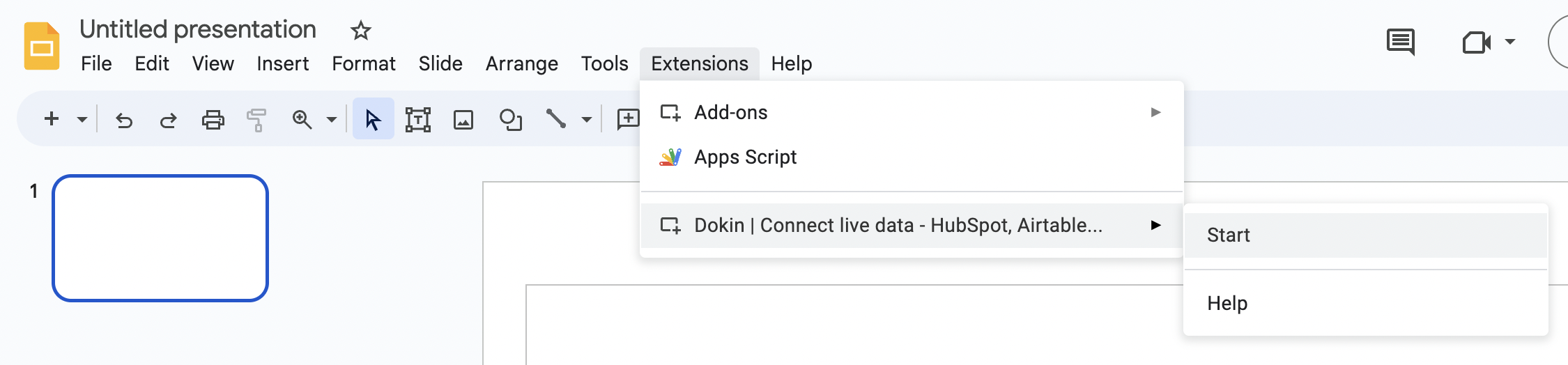
Then, click on “Extensions”, “Dokin” and then “Start”.
<img src="https://4155748457-files.gitbook.io/~/files/v0/b/gitbook-x-prod.appspot.com/o/spaces%2FlqAYxzBJs5gwjCJbSRPE%2Fuploads%2Flkrc5zrKkte2jqjmCQKG%2Fimage.png?alt=media&#x26;token=fc7526af-9225-4734-aa48-a67109f90f4e" alt="" data-size="original">    ![](https://4155748457-files.gitbook.io/~/files/v0/b/gitbook-x-prod.appspot.com/o/spaces%2FlqAYxzBJs5gwjCJbSRPE%2Fuploads%2Fc8koYc05rqV4PhKhIV5D%2Fimage.png?alt=media\&token=3a6c3938-34c4-41de-b615-5247b47ce16a)   ![](https://4155748457-files.gitbook.io/~/files/v0/b/gitbook-x-prod.appspot.com/o/spaces%2FlqAYxzBJs5gwjCJbSRPE%2Fuploads%2FEOWaWcOVDqYynSsycBXr%2Fimage.png?alt=media\&token=890c092a-1ee2-4e1c-8693-e3fb9a9c6ecf)

</details>

## Step 1: Select the Snapchat Ads connector

On the home page, you'll find a list of your imported data, as well as a button for creating new connections. Click on the **"Connect New Data"** button.

Next, a  menu will appear. Here, simply pick the **"Snapchat Ads"** app from the list of options.

<figure><img src="https://4155748457-files.gitbook.io/~/files/v0/b/gitbook-x-prod.appspot.com/o/spaces%2FlqAYxzBJs5gwjCJbSRPE%2Fuploads%2FCCwMfwE6jwiZNqi3guRs%2Fimage.png?alt=media&#x26;token=1bf37aef-9244-4aeb-850c-aafe54dcb0ae" alt=""><figcaption></figcaption></figure>

{% hint style="info" %}
**Importing data from Scratch or from a Template**&#x20;

When it comes to importing data, you have two options: starting from scratch or using a template you've created before. Templates can significantly speed up the data import process. To discover how to create and reuse templates, please consult our step-by-step article.
{% endhint %}

<figure><img src="https://lh7-us.googleusercontent.com/_lvA9C-w6vges5Bs3IDiXbfm3ZBrVjXlDj3XsNdOjTwc9TXL-K1GzvOEIFnzM5cZBFXeEX8ghlpmPCsIJ8jBl7lm6cCqOR0SL9R_hvSlPwC9E_dZLgFThFduUVcq6TTePQWJHb5qRSnG1sc6WZuECAw" alt=""><figcaption></figcaption></figure>

## Step 2: Connect to your Snapchat Ads Account

If this is your first time using Dokin or if your previous connection has expired or been revoked, you will need to connect Dokin to your Snapchat Ads account.

<figure><img src="https://4155748457-files.gitbook.io/~/files/v0/b/gitbook-x-prod.appspot.com/o/spaces%2FlqAYxzBJs5gwjCJbSRPE%2Fuploads%2FAchLbMqyoThfguwbqgKY%2Fimage.png?alt=media&#x26;token=f3b15525-efe0-4274-8197-5938cff70842" alt=""><figcaption></figcaption></figure>

You will be re-directed to a Snapchat Authentication page. Simply select the account you would like to link to Dokin.

Once you are done, the page will automatically close and you'll be redirected to Dokin

## Step 3: Select the Data to Import from Snapchat Ads

A preview page will open. This allows you to manage your import, by selecting Properties, dimensions, filters and more. It also allows you to preview the data you import.

### 1. Select an Ad Account

Begin by selecting the Snapchat Ads account from which you intend to import data. This choice determines the source of the information you wish to bring into Dokin.

<figure><img src="https://lh7-us.googleusercontent.com/HWW00I1XUz1SC_H0t0s-tEnuvWgdOZyiC19i6JJTHlWWgh4I-dP3rD2NxZyPyU-fL3kIWDk7XGFD9l6v929Mk7FBqoTAWi0WAPZHDjtRZuek6w0GEQbhpq7ypWGOgwJ-eCktMqt5s8iMyKFxNUI_e_s" alt=""><figcaption></figcaption></figure>

### 2. Select the Fields

Next, **pick the Dimensions and metrics** you wish to display in your import. You have the flexibility to select anywhere from one to an unlimited number of fields, tailoring the import to your precise needs.

Once you've made your selections, you can **rearrange the fields** to your liking. This can be achieved with a simple drag-and-drop action, ensuring that the data is presented in the most logical and useful order for your specific needs.

You will have an inline preview of your data:

<figure><img src="https://4155748457-files.gitbook.io/~/files/v0/b/gitbook-x-prod.appspot.com/o/spaces%2FlqAYxzBJs5gwjCJbSRPE%2Fuploads%2FX4yAp8JdOnDxxLyetHO5%2Fimage.png?alt=media&#x26;token=3b84a872-7c0d-4689-b48f-ce989a38c2ea" alt=""><figcaption></figcaption></figure>

### 3. Optional: Filtering and Sorting

For additional customization, you can apply filters and sorting to your imported data. This step is optional.

#### Filtering

* Select the field you want to filter by
* Choose an operator (such as Equal, Contains, Less Than, etc.). The operator depends on the type of field.&#x20;
* If needed, enter the value.&#x20;

#### Sorting

If you want your data to be presented in a specific order, select the sorting field and indicate whether it should be in ascending or descending order.

<figure><img src="https://lh7-us.googleusercontent.com/IyqXLlgNFb2SM4S4YjwYPojFHCL4BqV0mpkNdexE56a5C-7c_NNaDWGR7bBbgWsA0aeR9J8Q7vrwep_ndVDZ4dvqhpxcXJEwmEZyWqartwYTi5DTSa-a6lRaPh1Ks10qwkkiZBxZd0acU5sxte07WwY" alt=""><figcaption></figcaption></figure>

### 4. Optional: Customize your Import

#### 4.1 - Assign a Name to your Import

Choose a meaningful name for your import process. This name will help you easily identify and manage your imported data within Dokin.

#### 4.2 - Set Up Scheduled Refresh

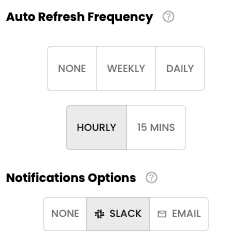
This option will automatically refresh your data at specific intervals. You can choose the frequency, including the day and time, and configure notifications to receive alerts when data is refreshed.

{% hint style="info" %}
**Google Sheets**

An automatic refresh means that at your specified intervals, the information imported into your Google Sheets will be automatically updated. This ensures that your data remains accurate and reflects the latest changes.
{% endhint %}

***Frequency***

Specify how often you want Dokin to automatically refresh your imported data. This ensures that your data remains current without requiring manual updates.&#x20;

The frequencies are available:&#x20;

* Manual Refresh (default)
* Weekly: Data refreshes every week. Select a specific day of the week and time for data refresh.
* Daily: Data refreshes every day. Choose the time for daily data updates.
* Hourly: Data refreshes every hour.
* 15 mins: Data refreshes every 15 minutes.

***Notifications***&#x20;

You can opt to receive notifications each time your data is refreshed. The available notification options include:

* None: No notifications will be sent.
* Slack: You will receive a Slack message whenever your data is refreshed. If it's your first time selecting this option, you'll be prompted to connect to your Slack workspace.
* Email: You will receive an email notification each time your data is refreshed.

<figure><img src="https://4155748457-files.gitbook.io/~/files/v0/b/gitbook-x-prod.appspot.com/o/spaces%2FlqAYxzBJs5gwjCJbSRPE%2Fuploads%2FwWbIbooMbU14SQ8amFDU%2Fimage.png?alt=media&#x26;token=e66682e1-f027-400f-8985-561a49a1e493" alt=""><figcaption><p>You can define an auto refresh for your data, with notifications</p></figcaption></figure>

#### 4.3 - Additional Customization \[GOOGLE SHEETS ONLY]

<details>

<summary>Remove Dokin Header</summary>

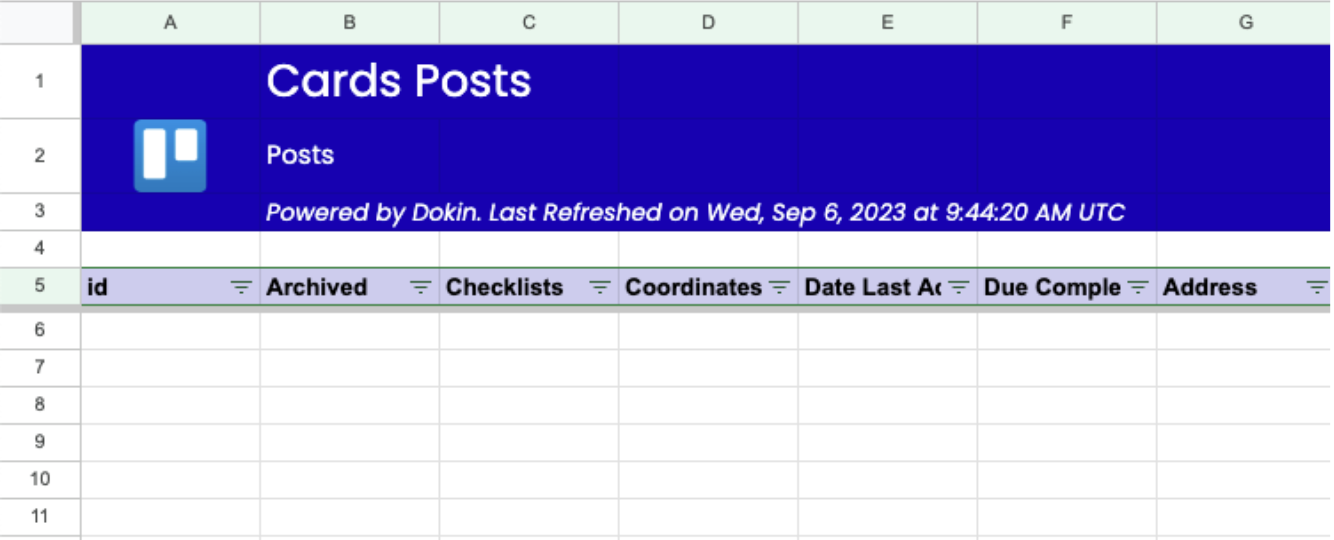
By checking this box, you can hide the header banner displaying the app name and connection information on your sheet. Instead, the fields will be inserted directly on the first line of your sheet, providing a cleaner and more customized presentation of your data.

Below is an overview of the **data with header.**

<img src="https://4155748457-files.gitbook.io/~/files/v0/b/gitbook-x-prod.appspot.com/o/spaces%2FlqAYxzBJs5gwjCJbSRPE%2Fuploads%2FWAnjT29BqGpkwBT0hdSU%2Fimage.png?alt=media&#x26;token=26657a01-acd4-472d-85a3-f0d967e7525f" alt="" data-size="original">

Below is an overview of the **data without header.**

![](https://4155748457-files.gitbook.io/~/files/v0/b/gitbook-x-prod.appspot.com/o/spaces%2FlqAYxzBJs5gwjCJbSRPE%2Fuploads%2FOaDJfbw2hDeVTWHwdcCc%2Fimage.png?alt=media\&token=e4244292-c369-4e00-a0e6-b7b03bbb4ace)

</details>

## **🎉 Congratulations, your Google Analytics data is connected. Now, what's next ?**

<table data-view="cards"><thead><tr><th></th><th></th><th data-hidden data-card-cover data-type="files"></th><th data-hidden data-card-target data-type="content-ref"></th></tr></thead><tbody><tr><td><strong>Google Sheets</strong></td><td><p>When clicking on Connect, Dokin will create a spreadsheet importing all the information you've requested. </p><p></p><p>If you have chosen automatic data refreshes your spreadsheet will automatically refresh with the latest data based on your schedule. You can also update data at any given point by clicking on the refresh button next to your import.</p></td><td><a href="https://4155748457-files.gitbook.io/~/files/v0/b/gitbook-x-prod.appspot.com/o/spaces%2FlqAYxzBJs5gwjCJbSRPE%2Fuploads%2FQB43YA1JIGShdSk9p6X3%2Fgoogle-sheets.png?alt=media&#x26;token=08f8a64e-8b89-40a7-b2fa-fde7cbdcbdeb">google-sheets.png</a></td><td><a href="../trello/push-back-data-from-google-sheets-to-trello">push-back-data-from-google-sheets-to-trello</a></td></tr><tr><td><p><strong>Google Slides</strong> </p><p></p><p>When clicking on Connect, Dokin will display a new Connection on the home page.</p><p></p><p>From there, you can choose to <strong>insert each cell data as dynamic content</strong> or you can create <a href="../trello/mail-merge-with-trello-data"><strong>multiple presentations using mail merge</strong>. </a></p></td><td></td><td><a href="https://4155748457-files.gitbook.io/~/files/v0/b/gitbook-x-prod.appspot.com/o/spaces%2FlqAYxzBJs5gwjCJbSRPE%2Fuploads%2FzmKxpzgPbcuJ3MQ0G7k0%2Fgoogle-slides.png?alt=media&#x26;token=1d7cd730-eb4e-4788-9f80-f42956a1a7a7">google-slides.png</a></td><td></td></tr><tr><td><p><strong>Google Docs</strong> </p><p></p><p>When clicking on Connect, Dokin will display a new Connection on the home page.</p><p></p><p>From there, you can choose to <strong>insert each cell data as dynamic content</strong> or you can create <a href="../trello/mail-merge-with-trello-data"><strong>multiple documents using mail merge</strong>. </a></p></td><td></td><td><a href="https://4155748457-files.gitbook.io/~/files/v0/b/gitbook-x-prod.appspot.com/o/spaces%2FlqAYxzBJs5gwjCJbSRPE%2Fuploads%2FZAGnM8LRewWk4YFZAcit%2Fgoogle-docs.png?alt=media&#x26;token=cb836a75-7650-4feb-8085-cb73789b9b1a">google-docs.png</a></td><td></td></tr></tbody></table>